How to Measure Decibels on iPhone (and Apple Watch)
Measure sound levels with your iPhone or Apple Watch: the Noise app, headphone level in Control Center, meter apps, and how accurate a phone mic really is.
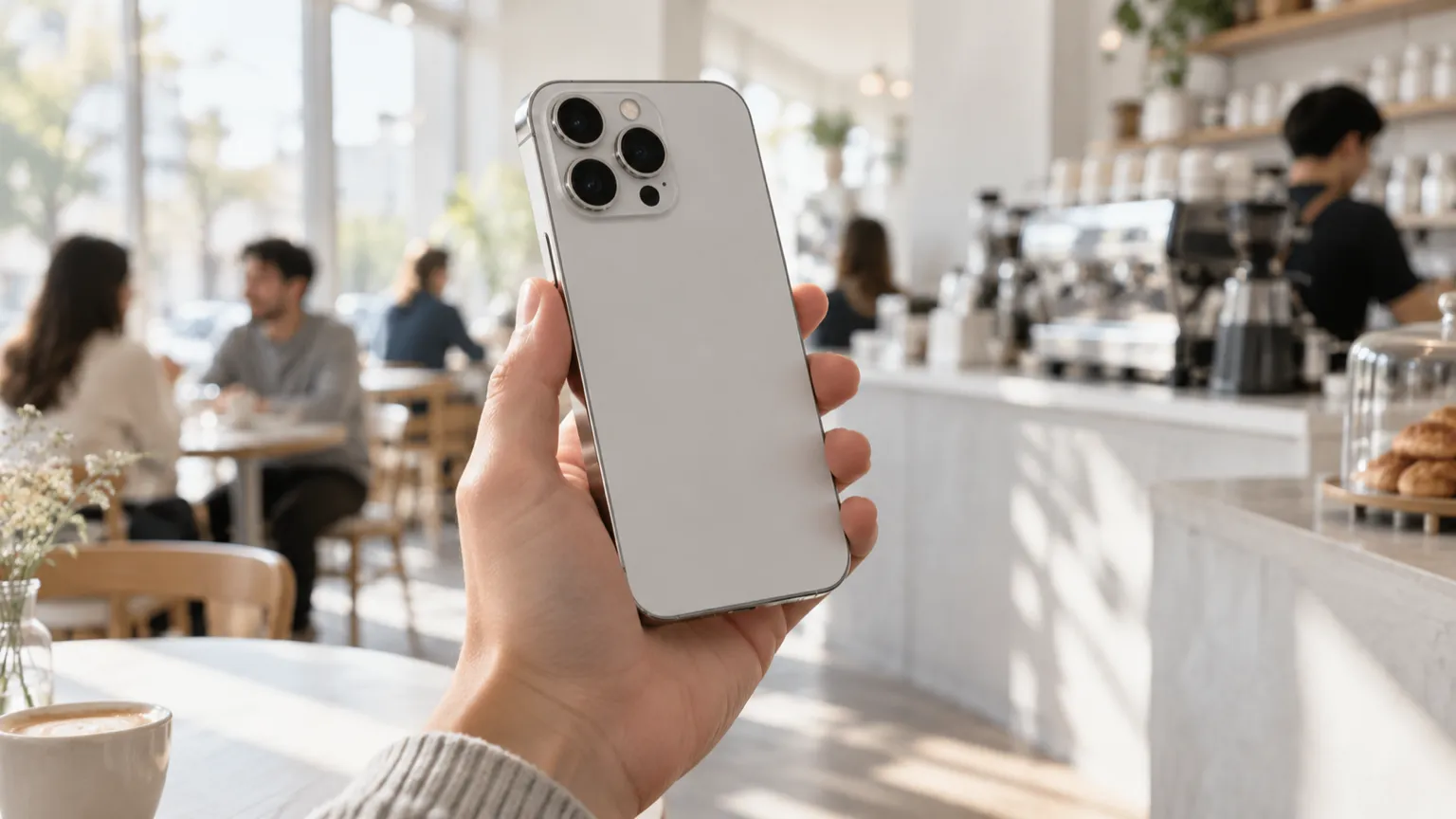
You can measure sound levels with an iPhone in three ways: the Noise app on an Apple Watch, the headphone level readout in Control Center (which only covers what you are listening to), or a sound meter app that uses the iPhone’s own microphone. Each answers a different question, and none of them turns a phone into a professional sound level meter. Used well, though, they are accurate enough for most everyday decisions.
Option 1: The Noise app on Apple Watch
If you have an Apple Watch Series 4 or later, it already has a built-in environmental noise meter.
- Open the Noise app on the watch. It shows the current level in decibels, with a simple OK or LOUD label.
- To get alerts, open the Watch app on your iPhone, go to Noise, and turn on Noise Notifications. You can pick a threshold between 80 and 100 dB.
- The watch alerts you when the average level over about three minutes reaches the threshold.
- The Health app on your iPhone keeps a history under Hearing > Environmental Sound Levels.
The Noise app is good for spotting loud environments over the course of a day. It is not built for detailed work: you cannot choose a weighting, see max or peak values, or save a labelled measurement of a specific place.
Option 2: Headphone level in Control Center
iOS can show how loud the audio in your headphones is, live.
- Open Settings > Control Center (on newer iOS versions, long-press Control Center and tap Add a Control).
- Add the Hearing control.
- While you play audio through headphones, open Control Center and tap the ear icon. It shows the current headphone level in decibels.
This measures the audio iOS is sending to your headphones, estimated from the volume and the headphone model. It does not measure the room around you. The figures are most reliable with AirPods and Beats, which Apple has characterised.
Two related settings are worth knowing:
- Settings > Sounds & Haptics > Headphone Safety > Reduce Loud Audio lowers headphone volume above a level you choose.
- iOS logs your headphone exposure in the Health app and can notify you when you pass a weekly limit based on WHO guidance.
Option 3: A sound meter app
To measure the room you are in, such as a café, a classroom, a neighbor’s party or a lawn mower, you need an app that reads the iPhone’s microphone and converts it to a sound level. A good meter app lets you:
- choose A, C or Z weighting (see dB vs dBA),
- switch between Fast and Slow response,
- see min, average (Leq), max and peak over a session,
- save and label measurements,
- and calibrate against a reference.
For a quick check without installing anything, the free meter on our home page runs in your browser and uses your phone’s or computer’s microphone.
What a phone microphone can and cannot do
iPhone microphones are good, and iOS lets measurement apps switch off most of the voice processing (automatic gain, noise suppression) that would otherwise distort the level. But they are designed for calls and video, not for acoustics.
| Situation | What to expect |
|---|---|
| Very quiet rooms, below about 30 dB | The phone reads its own noise floor, not the room. A 20 dB studio will show a higher number. |
| Normal range, about 30 to 100 dB | The useful range. Readings track real changes well, and calibration improves the absolute numbers. |
| Very loud, above about 100 to 120 dB | The microphone clips, depending on the model. The reading flattens out and should be read as “at least this loud”. |
| Wind or moving air | Even a light breeze adds noise that is not really there, sometimes tens of decibels. |
| Phone in a case or pocket | A thick case, a finger or lint over the microphone lowers the reading. |
| Strong bass | Small microphones lose sensitivity at very low frequencies, so deep rumble may read low. |
Accuracy, honestly
Professional sound level meters are built and tested to IEC 61672 as Class 1 (precision, used for legal and lab work) or Class 2 (general field use). They come with known tolerances and are checked with an acoustic calibrator.
A phone is neither. NIOSH researchers who tested smartphone sound apps found that the better iOS apps came within a few decibels of a reference meter under lab conditions, while many apps were far off. Results depend on the iPhone model, the case, the app and the environment.
In practice:
- Comparisons are reliable. Is this room louder than that one? Did the music get louder after 10 pm? Is the mower over 85 dB? A phone answers these well.
- Absolute numbers are approximate. Expect a few decibels of uncertainty, more at the extremes of the range.
- Phone readings are not evidence. For legal, workplace or regulatory purposes, use a certified meter operated by someone qualified.
Tips for better readings
- Find the microphone. On iPhone, the main microphone for measuring is on the bottom edge. Point it toward the sound.
- Take off a thick case, and keep your fingers clear of the bottom edge.
- Hold the phone away from your body, at arm’s length. Your body reflects and absorbs sound.
- Keep still. Handling noise shows up in the reading.
- Shield it from wind outdoors. A foam windscreen, or even standing in the lee of a wall, makes a big difference.
- Measure for long enough. For changing noise, record 30 seconds to a few minutes and use Leq rather than one glance at the number.
- Use the right settings. dBA for anything involving people. Slow for steady noise, Fast for short events.
- Stay in one spot when you compare measurements over days. Position changes the number more than people expect.
- Close other audio apps. If a call, voice memo or video recording is using the microphone, the meter may not get it.
Calibrating your iPhone
Microphones vary from model to model, and even between two phones of the same model. Calibration fixes the offset.
The most practical method is to borrow or rent a sound level meter you trust. Place both side by side in a steady sound, such as pink noise from a speaker or a constant fan, at a moderate level around 70 to 80 dB. Note the reference meter’s reading, then set your app’s calibration so it matches. A good app applies that correction to every reading afterwards.
Calibrate with the same weighting on both devices, and repeat if you change your case or switch to a different phone. A single-point calibration corrects the overall offset but cannot fix problems at the extremes, such as clipping.
Which method should you use?
| You want to | Use |
|---|---|
| Get warned about loud places during the day | Apple Watch Noise app |
| Know how loud your music is in your earbuds | Control Center headphone level, Health app |
| Check a room right now, nothing to install | Browser meter |
| Measure, label and save readings, see Leq and peak | A meter app |
| Produce a legally valid measurement | A certified Class 1 or Class 2 meter |
Once you have a number, the decibel chart puts it in context, and how loud is too loud tells you how long it is safe.
Our app
Decibel Meter: dB Sound Level is our iPhone and Apple Watch meter. It shows the live level in dBA, dBC or dBZ with Fast or Slow response, records min, average (Leq), max and peak, plots a chart and a frequency spectrum, and calculates a NIOSH/OSHA noise dose. You can save records with a location label, export them, overlay the level on video in camera mode, and calibrate it per device. It has the same microphone limits as any phone. The app is free to download, and live measuring is part of the subscription. See what the app does.
Questions
Does the iPhone have a built-in decibel meter?
Not for room noise. iPhone can show headphone audio levels in Control Center and the Health app, but to measure the sound around you, you need a meter app or the Noise app on Apple Watch.
How accurate is a decibel meter app on iPhone?
Good iPhone apps are usually within a few decibels of a professional meter for everyday levels, and NIOSH reports about ±2 dBA for its own app. Accuracy drops below about 30 dB, above about 100 to 120 dB, and in wind.
Which microphone does an iPhone meter app use?
Usually the main microphone on the bottom edge. Point it toward the sound, keep fingers and thick cases clear of it, and hold the phone away from your body.
How do I get noise alerts on Apple Watch?
Set a noise threshold in the Watch app on iPhone or in Settings > Noise on the watch. The watch taps your wrist when the surrounding level reaches it, and the Health app keeps a history under Hearing.